Getting started with ScammerSlammer
ScammerSlammer is a powerful Discord bot designed to help server administrators combat scams and malicious activity. This guide will walk you through the initial setup and configuration of ScammerSlammer on your server.
Before you begin, ensure that you have already added ScammerSlammer to your server. If you haven't done so yet, please refer to our How to add ScammerSlammer guide for detailed instructions.
Before the bot can start working itself, you need to configure a few settings to tailor its behavior to your server's needs.
Step 1: Role Hierarchy
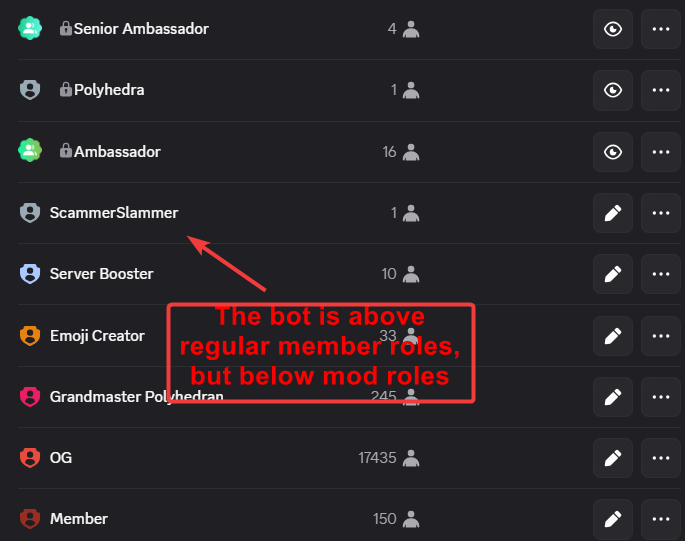
Ensure that ScammerSlammer's role is positioned above the roles of members you want it to moderate. This is crucial for the bot to effectively manage and take action against users. We recomend putting it above any members roles and below and admin or mod roles.
Heres an example of a good role hierarchy:
Step 2: Configuration commands
1: Ban role setup
Begin by running the /setup_ban_role command. This command allows you to assign a specific role, such as a moderator role, which will have access to the global banning system managed by ScammerSlammer. It is crucial to assign this role carefully, as it grants significant authority within your server’s moderation framework.
2: Log channel setup
Following the role setup, you should execute the /setup_log_channel command. This command designates a channel where the bot will log all its actions, including detected scams and bans. Typically, this would be a dedicated logging channel created specifically for moderation activities. Having a log channel helps maintain transparency and allows your moderation team to review the bot’s actions whenever necessary
Done!
After this, the bot is fully setup and should start automatically bananing scammers and logging actions to your log channel. If you need further help, feel free to contact our support team.
Still need help?
Open a support ticket